
It's 3:14 a.m. Your phone buzzes — or worse, it doesn't, because you don't have monitoring set up, and you'll find out about the outage in the morning from a customer email: "Hey, the site has been down for hours." Now what?
Here's a step-by-step guide: how to diagnose what happened, what you can fix yourself, and when it's better to just call for help and go back to bed.
Step 1: Confirm the site is actually down
Before you change anything, make sure the problem is real and global, not local (your internet, browser cache). Open the site in a private/incognito window or on mobile data. If you have automated monitoring set up, an SMS or email alert should already have told you — along with the exact time the problem started, which makes diagnosis a lot easier. For more on checking availability, see How to Check If a Website Is Down: 5 Methods.
Step 2: Identify what you're dealing with
WordPress tends to fail in a few characteristic ways. The error message itself narrows down the list of suspects:
White Screen of Death
The site is completely blank, with no error message at all. The most common causes: a PHP error in a plugin or theme (often after an automatic overnight update), or the PHP memory limit being exceeded.
500 Internal Server Error
The server "knows" something is wrong but can't describe it precisely to the visitor. Causes are similar to the above; sometimes it's a corrupted .htaccess file.
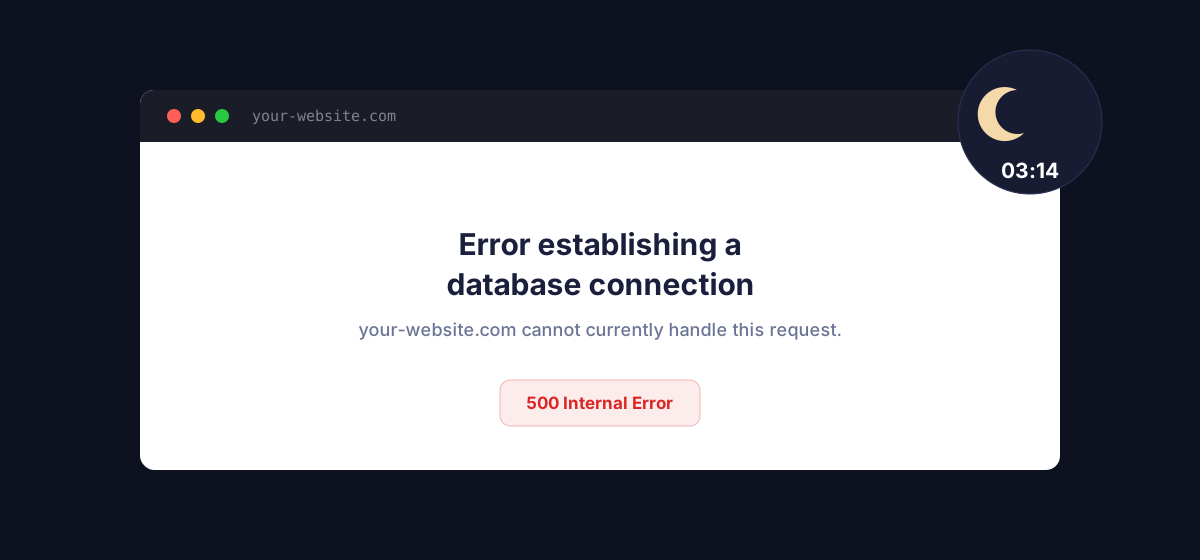
"Error establishing a database connection"
WordPress can't connect to the database. This can mean: a database server outage on the hosting side, an exceeded connection limit, incorrect credentials in wp-config.php (if someone recently changed them), or a corrupted database table.
Site stuck in "maintenance mode"
If an automatic update of WordPress core or a plugin was interrupted (e.g. by a timeout), the site can get stuck in maintenance mode and show "Briefly unavailable for scheduled maintenance".
Expired domain or SSL certificate
Sometimes the site "doesn't work" because the browser can't connect at all (expired domain), or it blocks the connection as unsafe (expired SSL). This is one of the most commonly overlooked scenarios, because it has nothing to do with WordPress itself.
Step 3: What you can do yourself before waking up a developer
1. Enable debug mode
If you have file access (FTP/SFTP or your hosting file manager), add these lines to wp-config.php:
define('WP_DEBUG', true);define('WP_DEBUG_LOG', true);define('WP_DEBUG_DISPLAY', false);— so the error isn't shown publicly
The error will appear in wp-content/debug.log and usually points directly to the file and plugin causing the problem.
2. Disable all plugins via FTP
If you can't access the admin panel, connect via FTP/SFTP and rename the wp-content/plugins folder to something like plugins-old. WordPress will automatically deactivate all plugins. If the site comes back, the issue is in one of them. Rename the folder back, then rename individual plugin subfolders one at a time until you find the culprit.
3. Switch to the default theme
Same idea as with plugins — if the theme is the problem, renaming the active theme's folder under wp-content/themes will make WordPress fall back to a default theme (e.g. Twenty Twenty-Four).
4. Check the PHP error log in your hosting panel
Most hosting panels (cPanel, DirectAdmin, custom panels) provide access to PHP error logs without needing FTP. This is often the fastest route to a specific error message.
5. Restore from a backup
If you have a recent backup (and you should — ideally automated, taken before the outage), restoring the last working version is often the fastest way to get the site back up, so you can investigate the root cause calmly during the day.
Step 4: When to call for help
If the site still isn't working after the steps above, or the issue involves the database, server infrastructure, or you suspect a hack/malware — that's the point to contact your administrator, your agency, or an emergency developer support service. The faster you report the issue with a precise description (what you see on screen, the exact error message, when it started), the faster someone can fix it.
Step 5: How to prevent this in the future
The best fix is the one you never have to do at 3 a.m. in a panic. A few things that genuinely reduce risk and shorten response time:
- 24/7 automated monitoring — an SMS or Telegram alert within minutes of an outage, instead of finding out from a customer in the morning.
- Regular, automated backups — stored off the production server.
- A staging environment — to test plugin and theme updates before deploying to production.
- SSL and domain monitoring — so an "outage" doesn't turn out to be an expired certificate everyone forgot about.
If you run a WooCommerce store, it's also worth knowing that standard monitoring tools might not catch a site that "responds" but where checkout and payments don't work. We cover this in WooCommerce Monitoring: Why Jetpack Alone Isn't Enough.
Find out about an outage before your customers do
MonitorWWW.com checks your WordPress site every 5 minutes and sends an SMS or Telegram alert the moment it detects a problem — even at 3 a.m.
Create a free accountSummary
A late-night WordPress outage is stressful, but in most cases it can be diagnosed methodically: check the error message, disable plugins and the theme, check the logs, and restore a backup as a last resort. And to make sure you find out about the next one immediately — not from a customer in the morning — get monitoring that watches your site while you sleep.